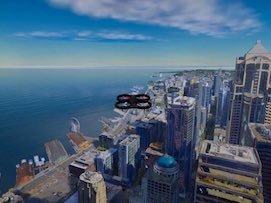
of autonomous drones.
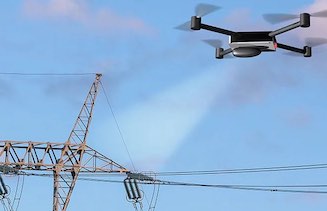
Flying a helicopter with a human would be
expensive and dangerous.
In early 2023, I started working for
Project AirSim.
AirSim is a testbed for aerial drones and the AI software that navigates them through environments.
of autonomous drones.
Flying a helicopter with a human would be
expensive and dangerous.
What they wanted me to do was "put a User Interface" on the Simulator. The Unreal game engine would display the current state (ie results). But, at the time, the only way to input data was through Python and the NNG protocol, which I'd never heard of. In some cases, they, and their customers, would literally adjust decimal point numbers (sometimes for global, lat/long coordinates) until they got the placements that they wanted.
When I arrived, a big problem was just a mutual awareness of technologies.
I was a web developer: HTTP protocol, JavaScript, browser security.
They did AI programming: NNG protocol, Python, occupancy grid.
They had no web developers, or even anybody with significant JavaScript or UI experience.
I would give lectures, that would have made sense to any web developer,
but I'd get back blank stares, just because it was nothing that they had experience with.
The first month was spent, mostly, just talking with the other programmers. I needed to understand how the Simulator worked: what it did, what interfaces it had, what was possible, etc. They needed to understand what I could do, and what a web browser could do. The most trouble they had was with the idea that JavaScript running in the browser can't freely access the user's filesystem, like in Python or C++.
The other programmers had their hands full doing AI and big data programming, concentrating on GIS, robotic devices and their physics models.
I designed and built the web app from a CRA prototype,
working with the UI designer and programmers.
(None of their existing programmers knew or did any web development.
But all had opinions.)
Much of it was standard controls for standard situations, with frequent exceptions.
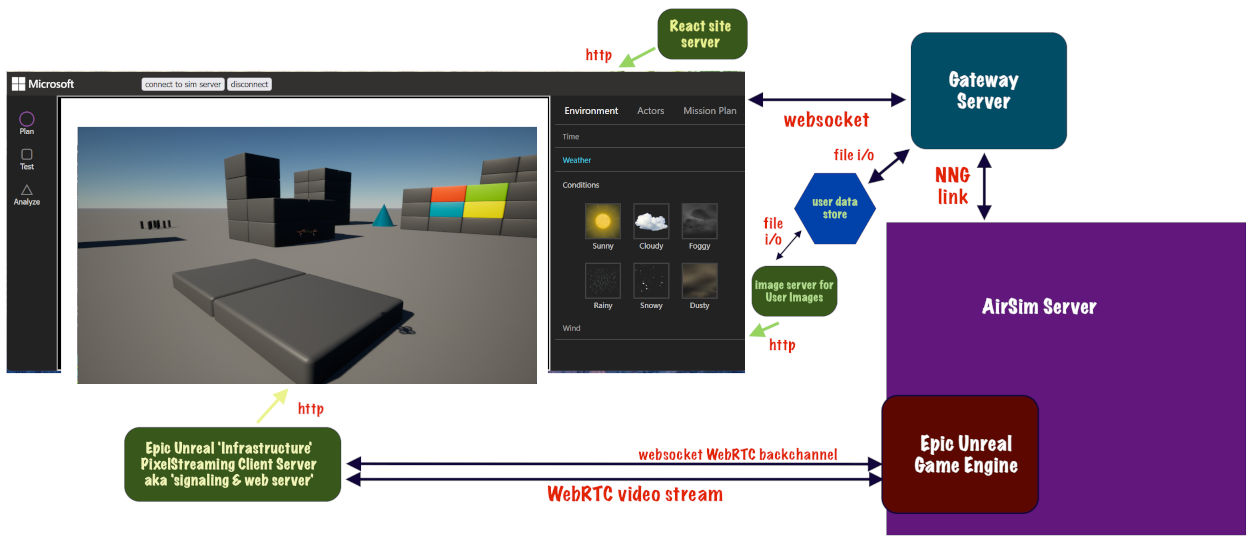
per the client's specifications. Purple at
right is the simulation engine.
The webapp covers the upper left.
The server plumbing evolved from various network and media considerations, based on what they wanted. (long story)
The webapp had two connections:
• main server connection for data, control and commands, sometimes called api
• WebRTC video connection displayed the game environment in an iframe in the webapp.
I did all the software design, code, all the interaction and event handling, and the navigation,
working with the UI Designer.
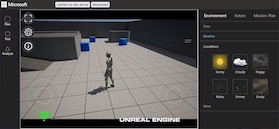
We used WebRTC for the display of the game view. This is how the game engine display showed up in the web app frame.
Being a game app, the game engine ran in a native window.
But, through a plugin, it also broadcast a WebRTC video stream,
for hosted and other remote server-based applications.
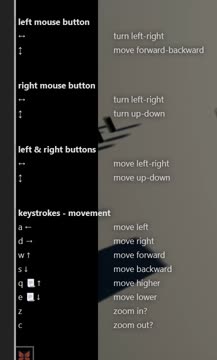
The user can move around in the virtual space, mostly looking down, with just a trackpad or mouse. Or, the keyboard. (This is for aircraft, so the usual vertical direction was down; we used NED coordinates.)
It was modeled after Google Earth's navigation system,
because the user for our app often needed a top-down view.
Game navigation is better for walking around on the ground.
We didn't use the native navigation in the game engine, for this reason,
and because we were also working with another game engine,
and wanted to keep the UI the same.
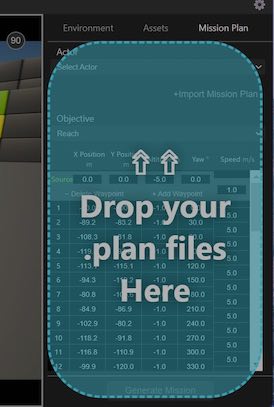
Users can create Missions, where a drone starts at one location, and visits waypoint locations sequentially. This mission originally visited the 8 corners of the block. Then, the user moves waypoints 15 and 18 to new locations, as their coordinates spin to the new values (gray row in table).
The Unreal game engine actually draws the 3d view with perspective and occlusion.
For interactivity, waypoints are drawn with SVG, with exactly the same perspective,
but without occlusion; waypoint 20 is on the other side of the block.
I programmed all the SVG.
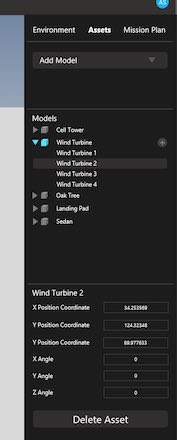
Inert objects in the environment are called 'assets'.
The user creates them here.
The webapp has a library of asset types to choose from,
and you can make your own with a .glb or .gltf file.
The user can change the time of day, and day of the year, for different lighting conditions. The user can also order up a variety of weather conditions and wind speeds and directions.